Customers
Before you troubleshoot calculations, confirm your customer records are complete enough for commission logic (ownership, region/segment, identifiers) and resolve gaps or conflicts here.
What you can do on this page
- Browse customers imported from connected systems.
- Identify missing required data in the Gap Report tab.
- Review duplicates and mapping issues across integrations.
- Investigate errors that affect customer records.
- Export/import customers for reconciliation workflows (where enabled).
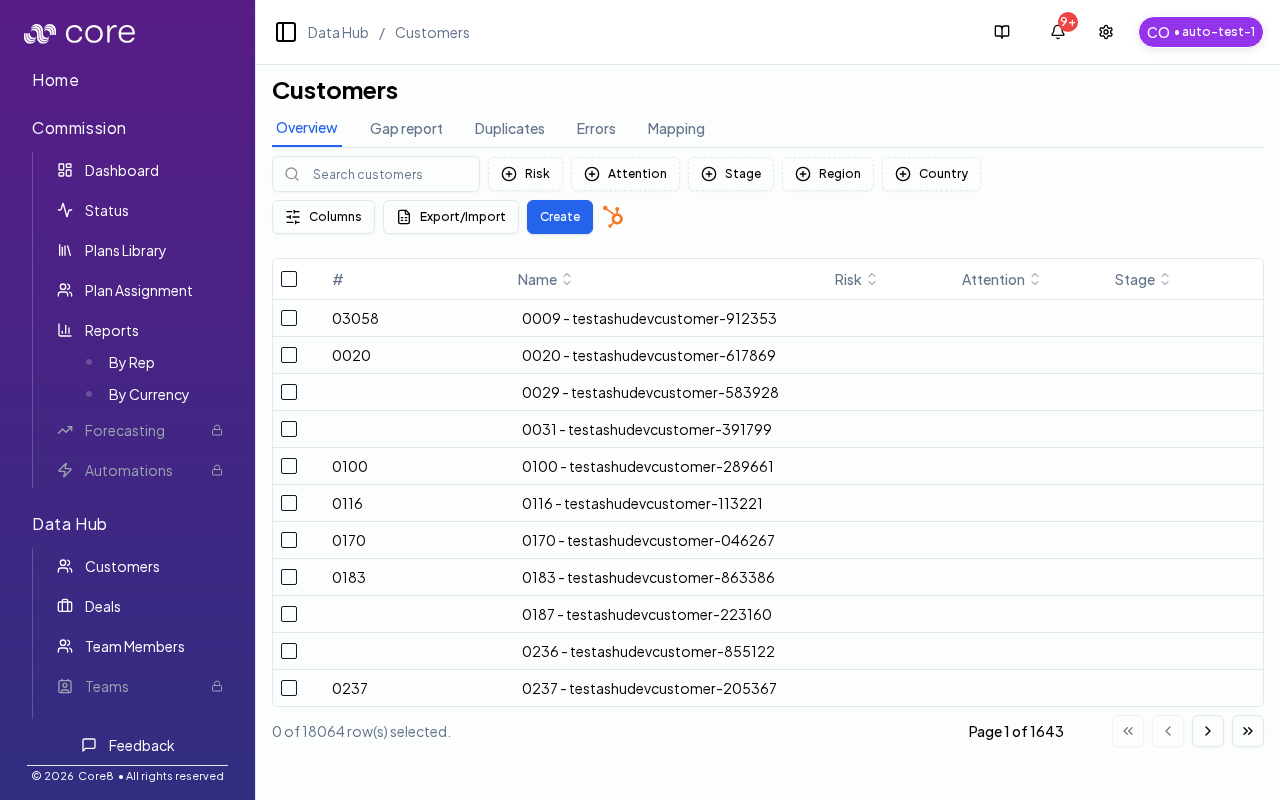
Overview table
On the Overview tab, you can:
- Search customers and filter by common attributes (for example risk, attention, stage, region, and country).
- Customize visible columns (per table settings).
- Export/import selected customers (for bulk corrections or reconciliation workflows).
Under the hood
- Tabs: use the page tabs to switch between Overview, Gap Report, and other supporting views (Duplicates, Errors, Mapping).
- Non-overview tabs: Gap report, Duplicates, Errors, and Mapping wait for Core8 to detect which integrations are connected; the page shows a loading state until that completes.
- Export/import: after an import completes, Core8 refreshes the customers table so you see updated records.
- How to verify: see How to verify customer data looks right below.
- If it looks wrong: check the Errors tab; for integration-related issues, check Settings → Integrations → Logs.
Gap report, duplicates, errors, and mapping
Non-overview tabs load data after Core8 determines which integrations are connected for your org. While integrations are resolving, you’ll see a loading state.
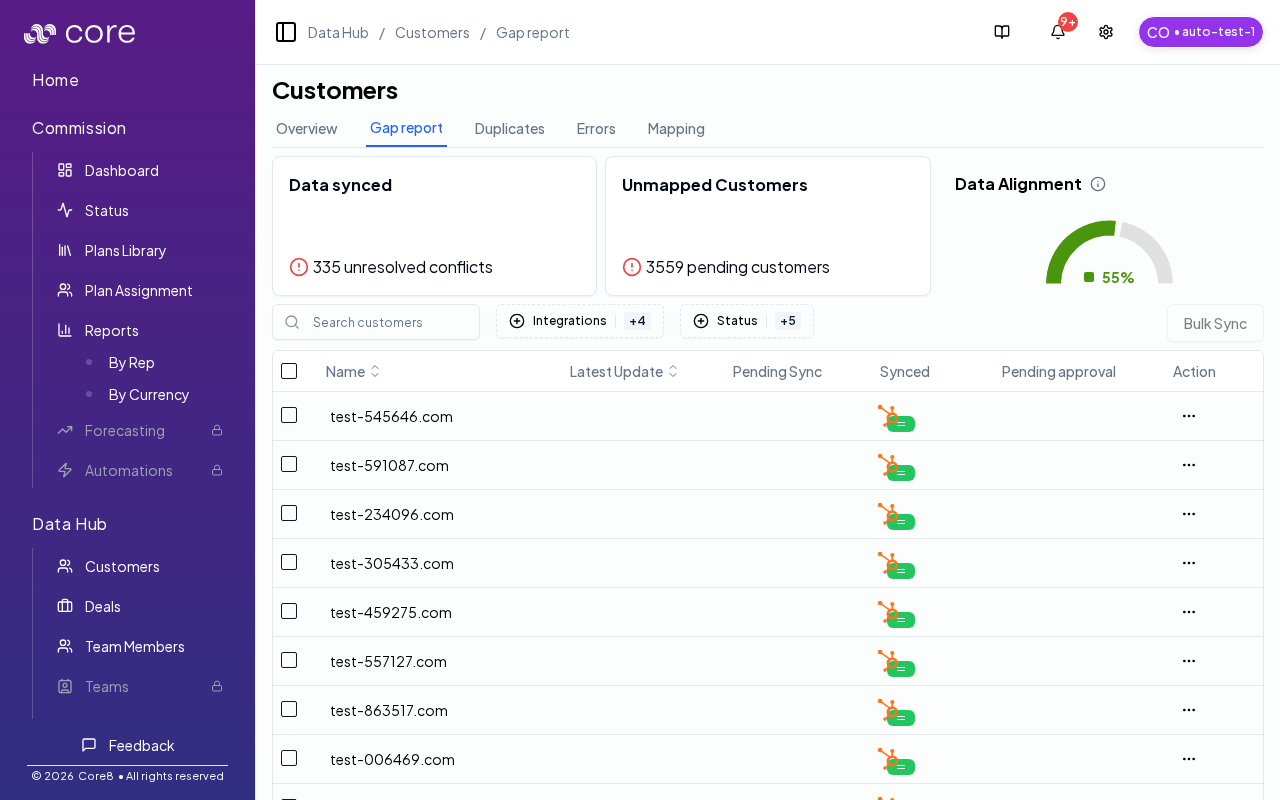
Reading the Gap report
At the top of the Gap report tab, Core8 shows a quick summary:
- Data synced: how many customer records have unresolved conflicts across integrations.
- Unmapped Customers: how many customers need review because an integration record is staged for sync.
- Data Alignment: the percent of customers that are fully up-to-date (“active”) out of all tracked customers.
The table below is your worklist. Use it to:
- Filter to the integrations and statuses you care about.
- Open the Action menu to review pending changes, merge, or jump to audit logs.
Bulk Sync (Gap report)
Use Bulk Sync to sync multiple selected customers from one integration:
- Select one or more rows in the table.
- Click Bulk Sync.
- Choose Sync data from (the source integration).
- Choose how to handle the data:
- Sync and review data conflicts manually: changes show up as pending approval to review.
- Sync and use as the Master: uses the selected integration as the source of truth for these customers.
- Click Sync all.
What to expect: the sync runs in the background and the table refreshes after completion. If you navigate away, confirm completion in Settings → Integrations → Logs (or Notifications, if enabled).
How to verify customer data looks right
- Use search + filters to find a customer you know should exist.
- If you just ran a sync, confirm completion in Settings → Integrations → Logs (or Notifications, if enabled).
- Open the customer and spot-check the fields your org uses in commission logic (name, external ID, segment/region, owner—whatever you map).
- If you see missing data, use Gap Report and Errors to identify which integration/field is incomplete.
Customer detail pages
Click a customer row to open the customer detail page. Use the tabs on the detail page (for example Customer and Deals) to review the customer record and its related activity.
Common issues
- A customer is missing or looks incomplete: confirm the record exists in the source system and that your integration filters include it; then run the per-integration sync.
- Duplicates appear: check whether multiple sources are creating the same logical customer; adjust matching rules/priority to pick one source of truth.
- Related deals are not linking to the right customer: verify the customer identifier used on deals (domain/account ID) and whether an override is forcing a link.